Editing Your Profile Picture and Nickname
Editing the Profile Picture
Step 1: Open the Personal Data Center, and tap the camera icon next to your profile picture in the upper-left corner.
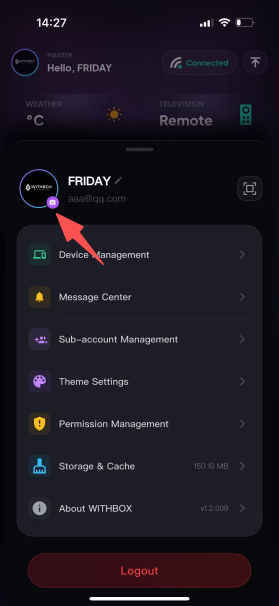
Step 2: In the personal information area, tap the blue camera icon at the lower-left of the profile picture. An "Edit Profile Picture" menu will pop up.
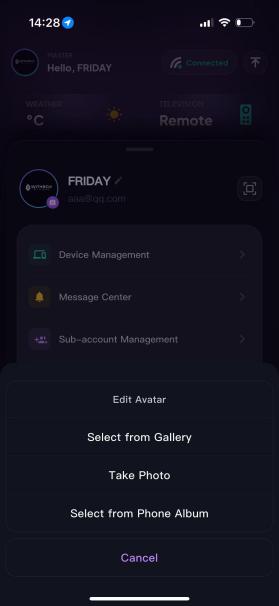
You can choose a profile picture from the following options:
- Select from Gallery: Choose an image stored inside WITHBOX as your profile picture.
- Take a Photo: Use your phone’s camera to take a new photo and use it as your profile picture.
- Choose from Phone Album: Choose an image from your phone’s local album as your profile picture.
Step 3: After selecting an image, tap Confirm to finish updating your profile picture.
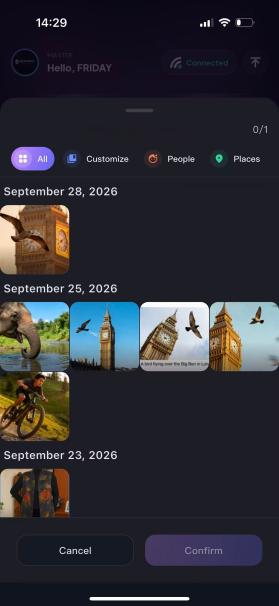
To cancel: Tap the Cancel button to close the pop-up. Your profile picture will remain unchanged.
Editing the Nickname
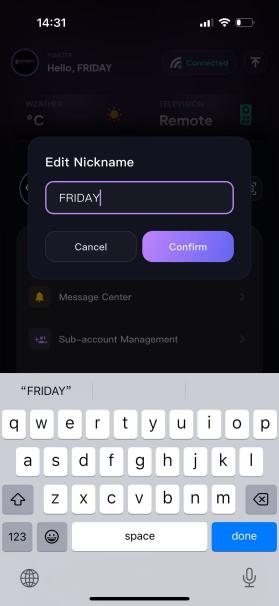
Step 1: Open the Personal Data Center, and tap the edit button next to your nickname.
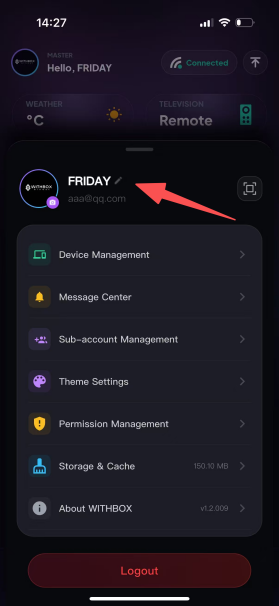
Step 2: Enter the edit mode, type your new nickname, then tap Confirm to save the change. To discard the change: tap the Cancel button to close the pop-up. Your nickname will remain unchanged.