How to Clear the Cache?
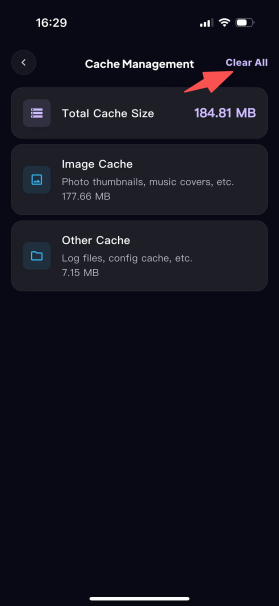
The Cache Management page clearly displays the app’s total cache size, along with a breakdown of the image cache (covering photo thumbnails, music covers, and other resources) and other cache (covering log files, configuration cache, and other data). It helps you clearly understand how much storage the cache occupies, and also lets you clear the cache with one tap to free up device storage space.
Step 1: Go to your personal homepage and tap Storage & Cache to open the Cache Management page.
Step 2: On the page, check the usage of the total cache, image cache, and other cache, then tap "Clear All" in the upper-right corner.
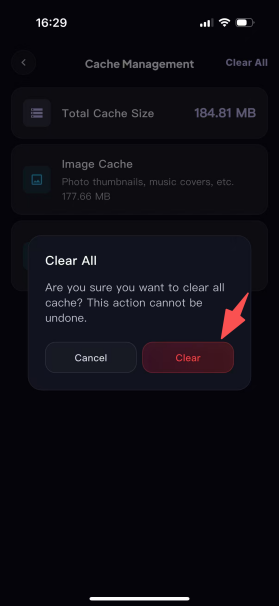
Step 3: In the confirmation box that pops up, tap Clear to finish clearing the cache; tap Cancel to abandon the operation. After clearing is complete, you will be taken to the login page and will need to log in again.