How to Disable a Sub-account?
Disabling a sub-account is a control action performed by the master account. After disabling, the sub-account will be restricted from logging in and cannot use storage space or related features. The account’s existing files and data are fully retained and will not be deleted. The master account can lift the restriction at any time to restore normal use of the account. Only the master account has permission to disable or re-enable sub-accounts.
Step 1: Open the Sub-account Management page;
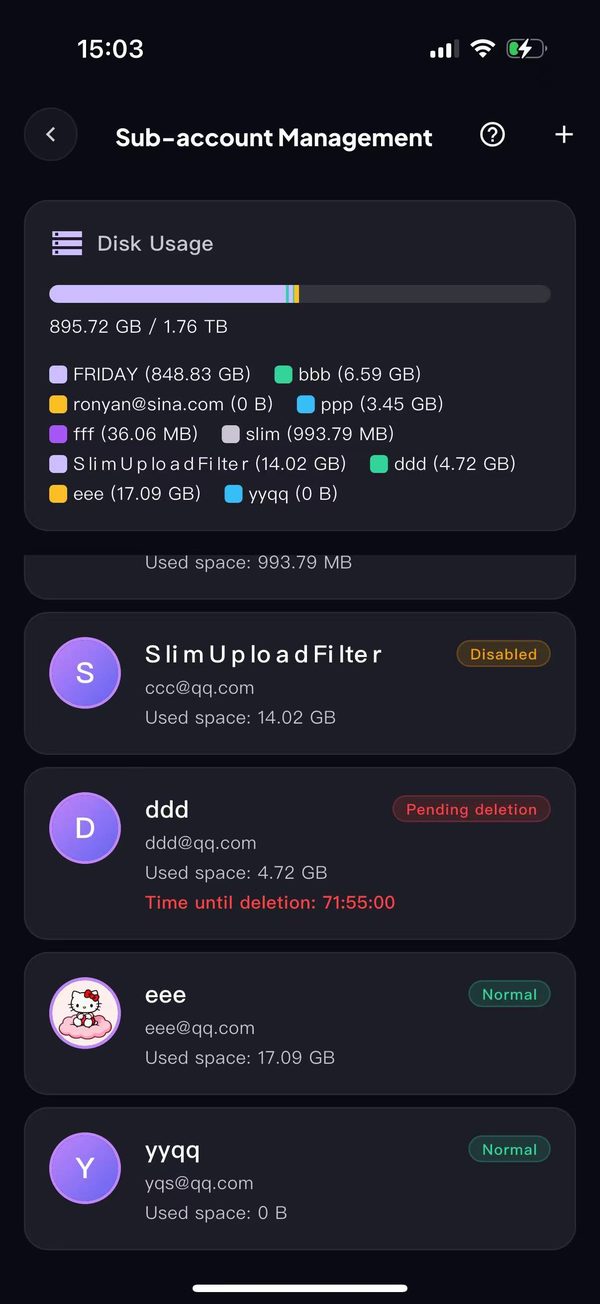
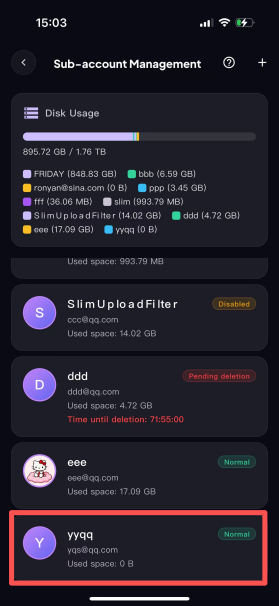
Step 2: Find the sub-account you want to disable. For example, to disable the account "yyqq";
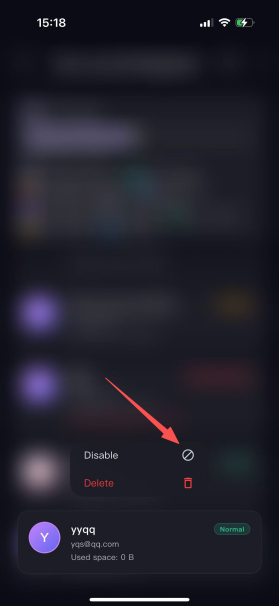
Step 3: Long-press the target sub-account item to open the action menu, then tap [Disable];
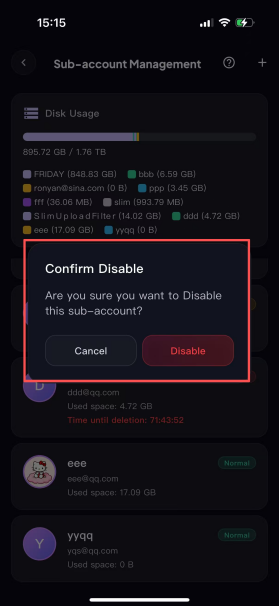
Step 4: In the "Confirm Disable" pop-up, tap the red [Disable] button to confirm;
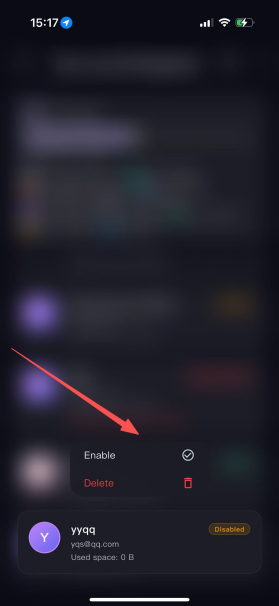
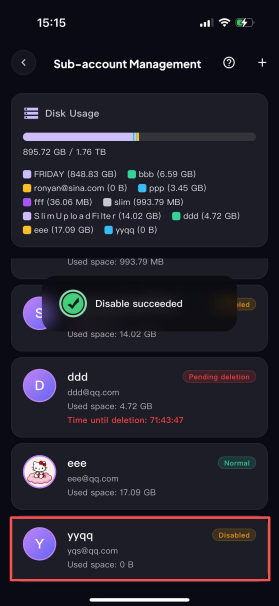
Step 5: When finished, the status of the sub-account changes to Disabled, and it can no longer log in.
Step 6: To lift the restriction, long-press and tap the Enable button; after enabling, the account returns to normal.