Theme and Language Settings
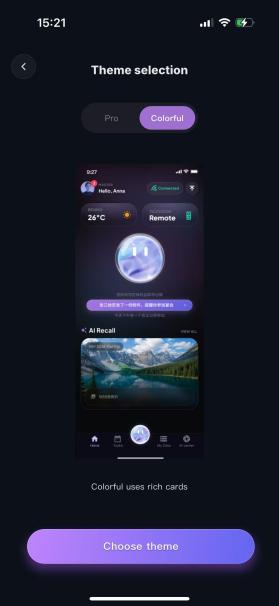
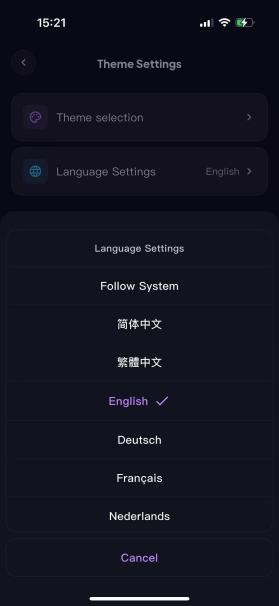
Theme settings control WITHBOX app’s overall theme light/dark appearance and support three display mode switching. Language settings switch the display language of all menus, buttons, and prompt text.
Step 1: Open the Theme Settings page;
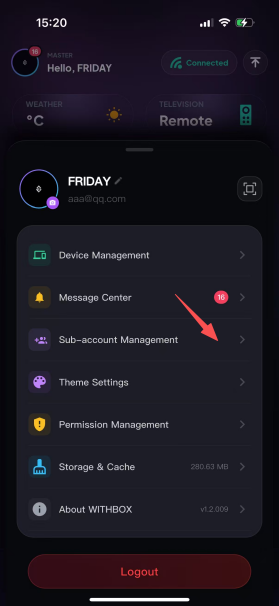
Step 2: On the Theme Settings page, choose "Theme Settings" or "Language Settings" as needed and adjust the corresponding options. For example, set it to Light theme and English mode. After that, the page switches to the selected mode immediately, which means the setting was applied successfully.
Opening the Permission Management Page
Permission Management is a feature module within the WITHBOX app that controls the various phone system resource permissions the app can obtain. It determines whether the app can access the photo album, camera, location, Bluetooth, contacts, and other phone features. This both ensures the app can use the corresponding capabilities normally and prevents the app from over-collecting private data, protecting the security of your personal information.
The steps below use granting microphone permission on an iPhone as an example
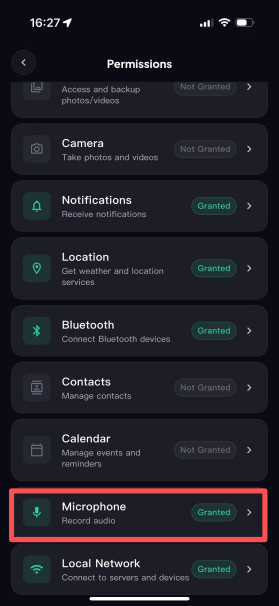
Step 1: Open the Permission Management page and tap Microphone authorization;
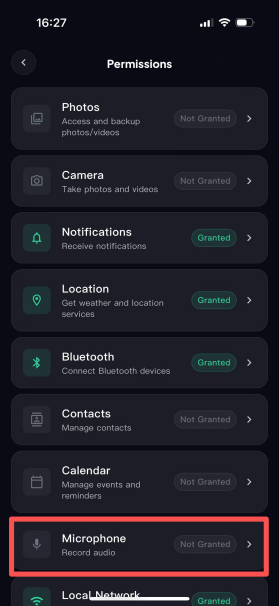
Step 2: After tapping, a microphone authorization pop-up will appear;
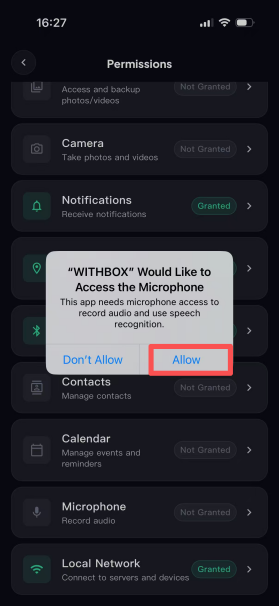
Step 3: Once authorization succeeds, the page will show that the permission has been granted.