Hardware Setup: Friday PRO
Follow these 3 quick steps to activate your device in just 30 seconds and unlock your private AI smart life.
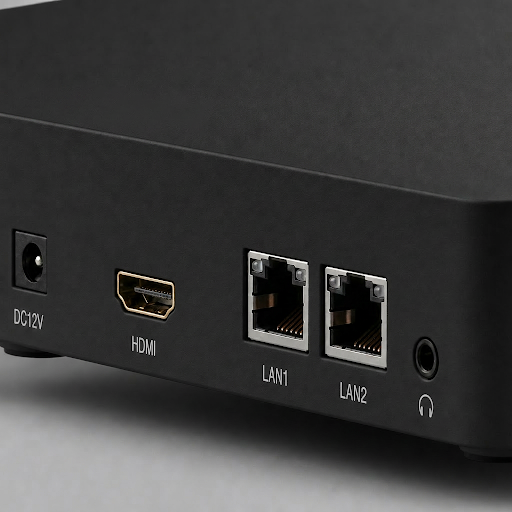
Connect Power (DC12V)
Plug the included 12V power adapter into the power port. The front LED ring will glow violet in pulsing mode.
Network Connection (10GbE LAN / Wi-Fi 6)
Either plug the CAT6 Ethernet cable into the 10GbE LAN port and link it to your router, or connect the device to your home Wi-Fi network. Confirm stable internet access.
Pair via Bluetooth & WITHBOX App
Turn on Bluetooth on your phone, download the official WITHBOX App (iOS / Android APK). Hold your phone close to the device to finish pairing and activate your unit.
Getting Started
Essential paths for your new digital sovereignty.
Device Setup
Physical installation, storage bay configuration, and thermal optimization.
Read Guide arrow_forwardsmartphoneApp Pairing
App pairing with mobile devices
Linking your sovereign box to the WITHBOX mobile dashboard for remote management.
Read Guide arrow_forwardlanguageBrowser Console
Accessing the web interface for advanced settings, docker containers, and RAID init.
Read Guide arrow_forwardauto_awesome Feature MasterclassView More
terminal Troubleshooting TerminalView More
Frequently Asked Intelligence View More
What should I do if I don't receive the verification code?expand_more
Is RAID 5 initialization mandatory for all disk sizes?expand_more
Why is the Neural AI Search indexing taking so long?expand_more
Can I use LAN2 for a separate isolated network?expand_more
Download Center
Get the latest binaries for all platforms. Our software is open-source and verified for security.