Browser P2P SDK Plugin Download Guide
Browser P2P SDK Plugin Download Guide
Windows System:
1. Google Chrome (https://www.google.com/chrome/) Installation Steps
Step 1: Open Google Chrome and visit the WITHBOX official website: https://ainest.zyszc.com/
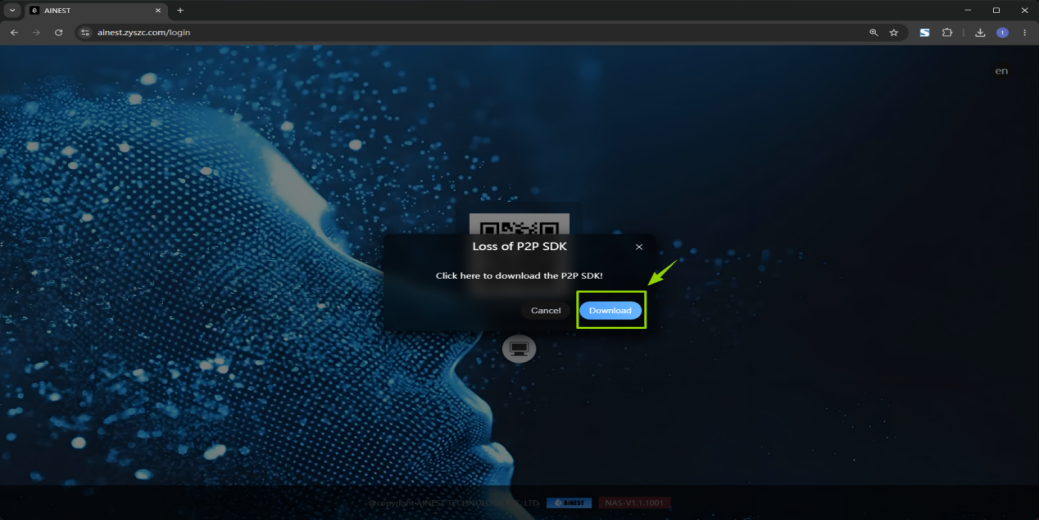
Step 2: On first entry, an SDK missing prompt will appear. Click Download in the pop-up window to obtain the P2P SDK installation package (witeyeTunnelSetup.msi).
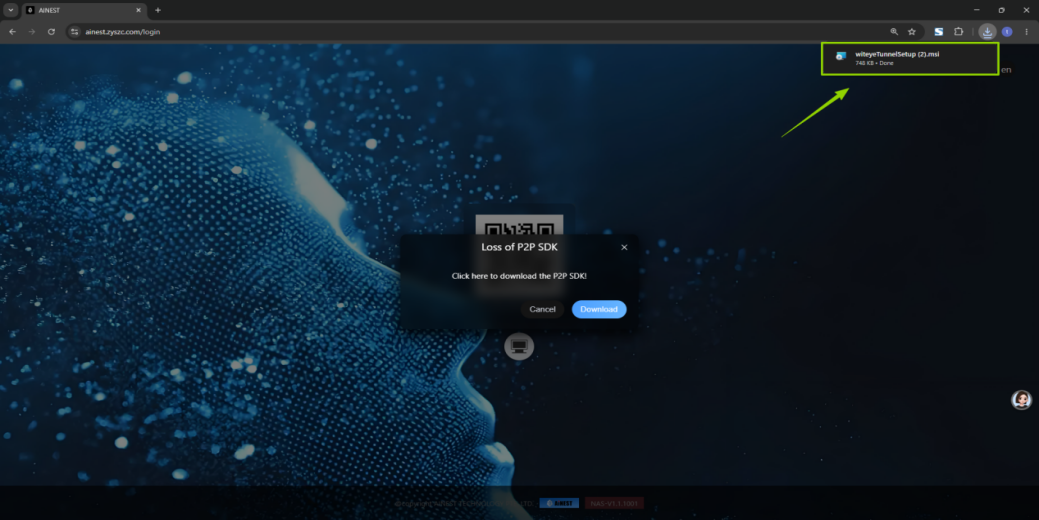
Step 3: After the download completes, click the installation package file at the bottom of the browser / in the download list to launch the installation wizard.
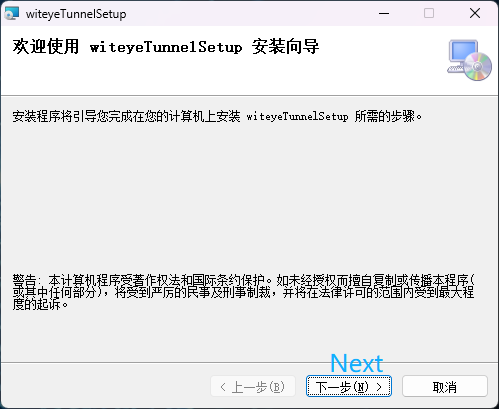
Step 4: Click Next continuously as prompted by the wizard. Wait for the progress to complete.
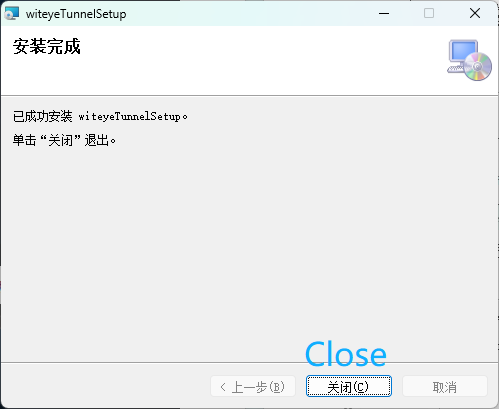
Step 5: After installation completes, click Close to exit the installer.
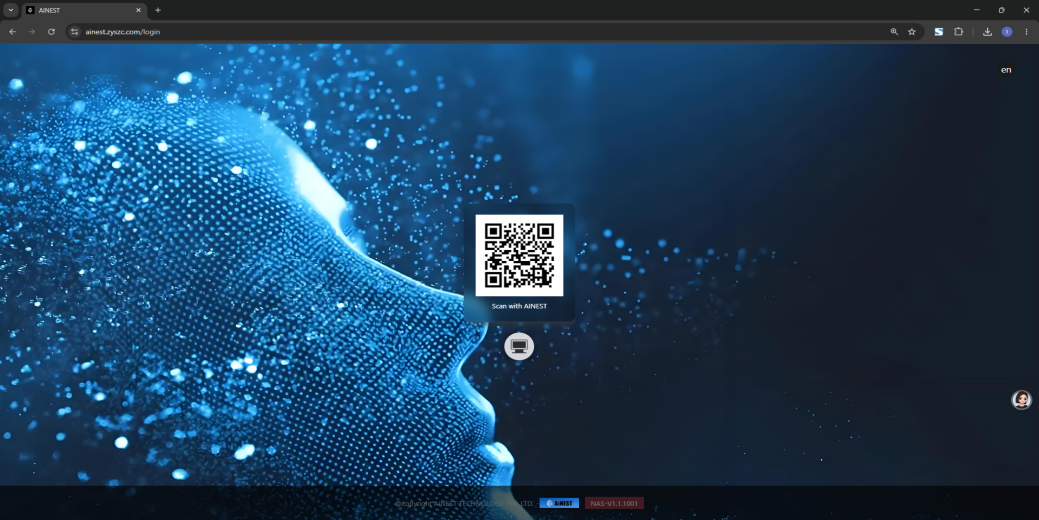
Step 6: Return to the WITHBOX webpage, refresh the page, and the login QR code will be displayed. Installation is complete.
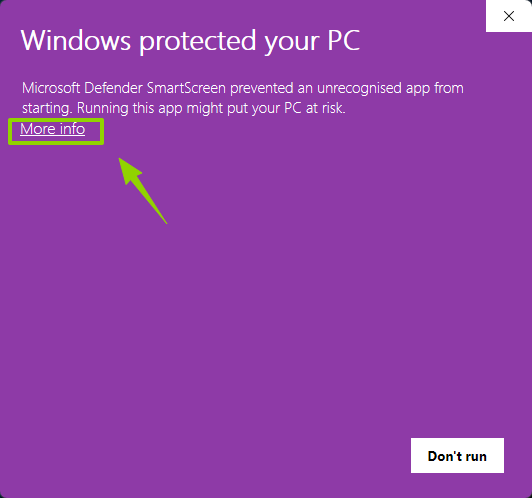
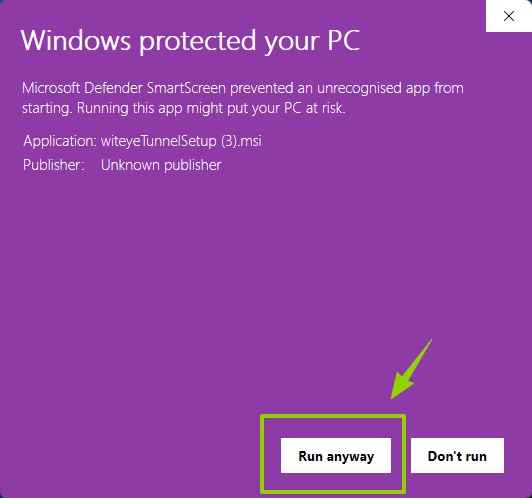
Note: If a "Windows protected your PC" prompt appears, click "More info" → "Run anyway" to continue the plugin installation steps (see figure below).
2. Microsoft Edge (https://www.microsoft.com/edge) Installation Steps
Step 1: Open Microsoft Edge and visit the WITHBOX official website: https://ainest.zyszc.com/
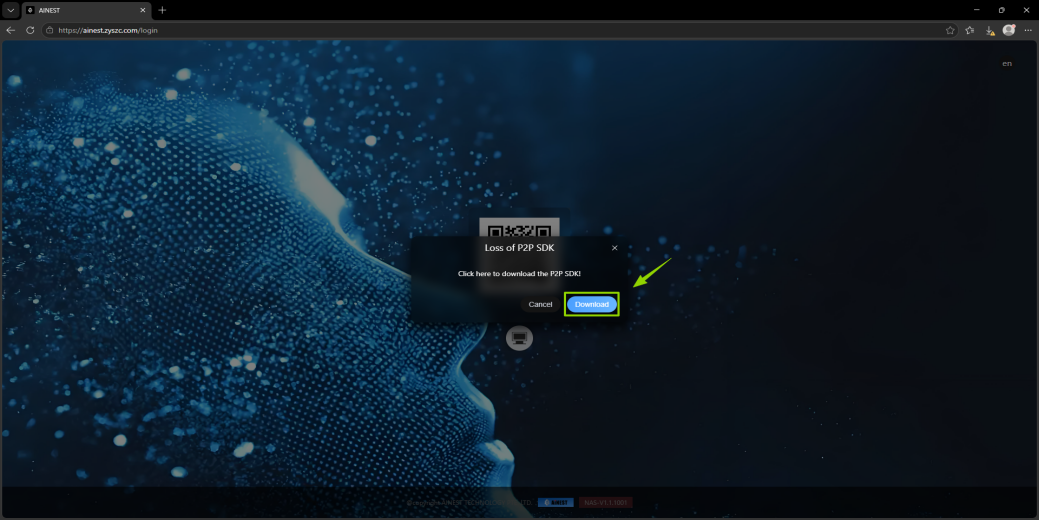
Step 2: On first entry, an SDK missing prompt will appear. Click Download in the pop-up window to obtain the P2P SDK installation package (witeyeTunnelSetup.msi).
Step 3: After the download completes, click the installation package file at the bottom of the browser / in the download list to launch the installation wizard.
Step 4: Click Next continuously as prompted by the wizard. Wait for the progress to complete.

Step 5: After installation completes, click Close to exit the installer.

Step 6: Return to the WITHBOX webpage, refresh the page, and the login QR code will be displayed. Installation is complete.

Note: After the plugin download completes, a "usual download" warning may appear. Select "Allow" or "Keep" for all security prompts.

Mac System:
1. Google Chrome (https://www.google.com/chrome/) Installation Steps
Step 1: Open Google Chrome and visit the WITHBOX official website: https://ainest.zyszc.com/
Step 2: On first entry, a "Server connection interrupted" prompt will appear. Click the red text "Login" in the pop-up window.

Step 3: After clicking "Login", an SDK missing prompt will appear. Click Download in the pop-up window to obtain the P2P SDK installation package (AINEST-P2P-control-Installer.pkg).

Step 4: After downloading, click the file. A warning will appear. Click Finish.

Step 5: Open Apple System Settings > "Privacy & Security", locate "AINEST-P2P-control-Installer.pkg" which has been blocked, and click "Open Anyway".

Step 6: Click the installation package file again at the bottom of the browser / in the download list to launch the installation wizard.

Step 7: Follow the wizard instructions and click "Continue" → "Install". If a warning appears, click "Allow" and wait for the progress to complete.
Step 8: After installation succeeds, click Close to exit the installer.

Step 9: The console page shown below will appear on the desktop, displaying "Connected". Close or minimize this window.

Step 10: Return to the WITHBOX webpage, refresh the page, and the login QR code will be displayed. Installation is complete.
Note: When "The installer wants to modify apps on your Mac" appears during installation, click Allow and enter your computer's login password to complete authorization.