How to Add, Delete, Modify, and Query To-Do Items in the Friday Module?
How to Add, Delete, Modify, and Query To-Do Items in the Friday Module?
1. Add Schedule
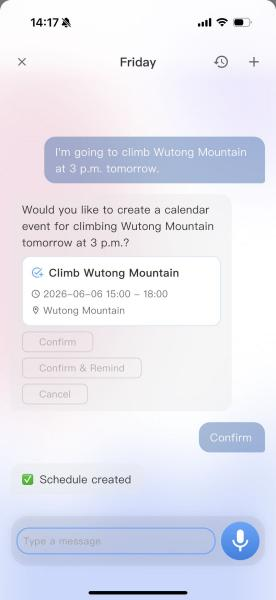
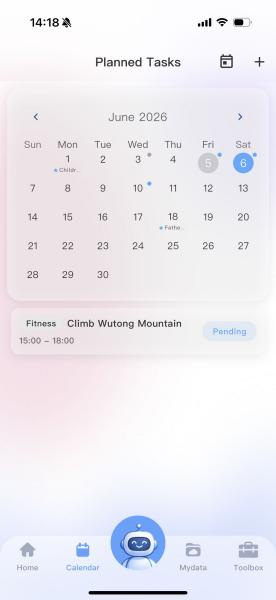
Click the Friday dialog box and enter a command in natural language (e.g., “Tomorrow at 3 PM I want to climb Wutong Mountain”). Wait 5–10 seconds; Friday will display a pop-up asking whether to create the <Climb Wutong Mountain> schedule. Click Confirm, and the to-do item will be automatically synced to the calendar on the corresponding date.

2. Delete Schedule
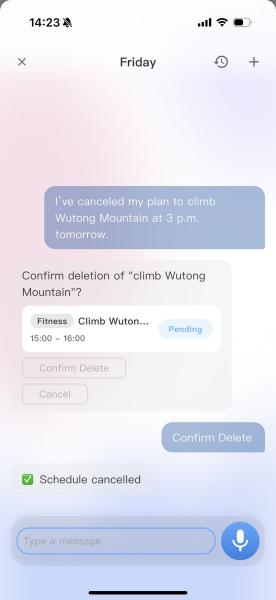
Click Friday and enter a natural language cancellation command (e.g., “Cancel tomorrow’s 3 PM Wutong Mountain climb to-do”). Wait 5–10 seconds; Friday will search for a matching schedule and display a pop-up asking for confirmation. Upon confirmation, the corresponding to-do item in the calendar will be deleted.

3. Modify Schedule
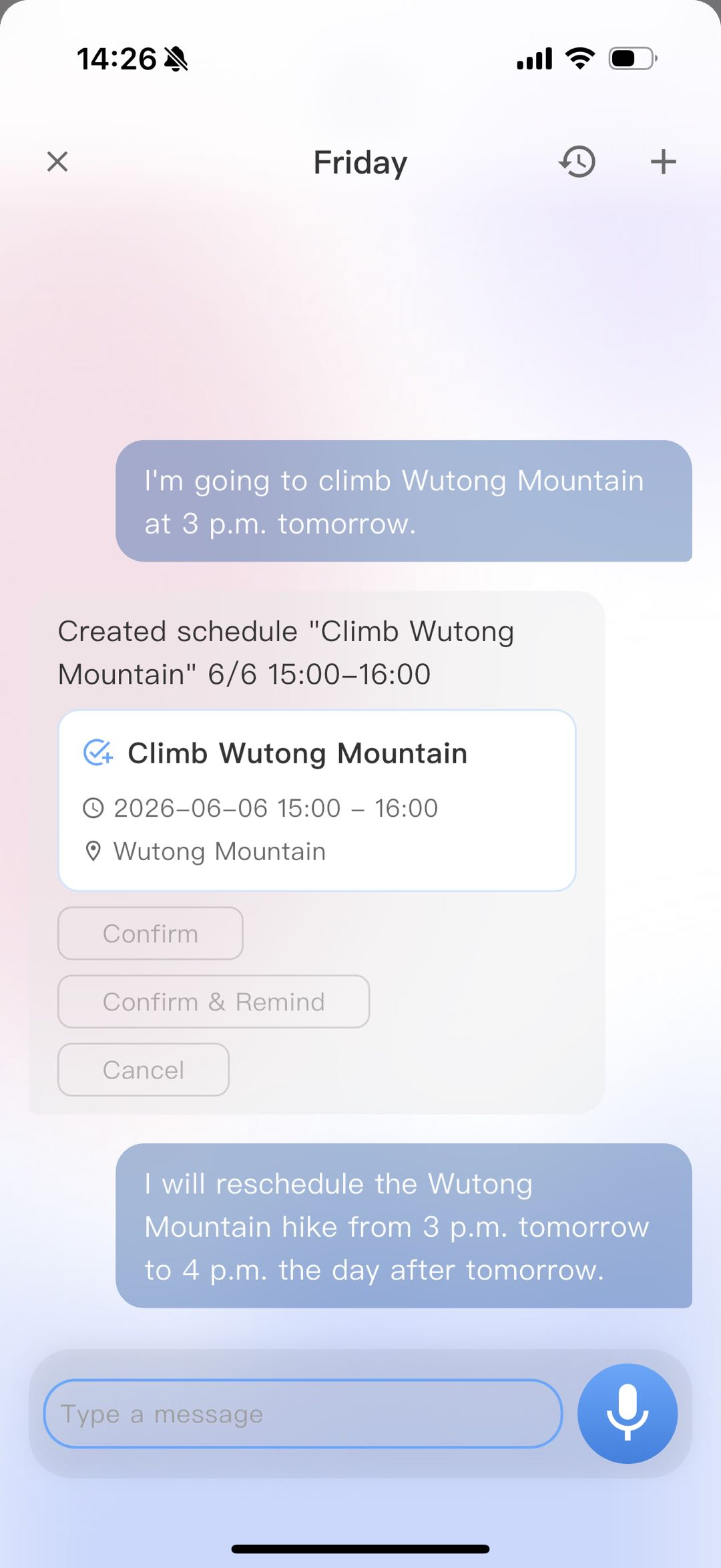
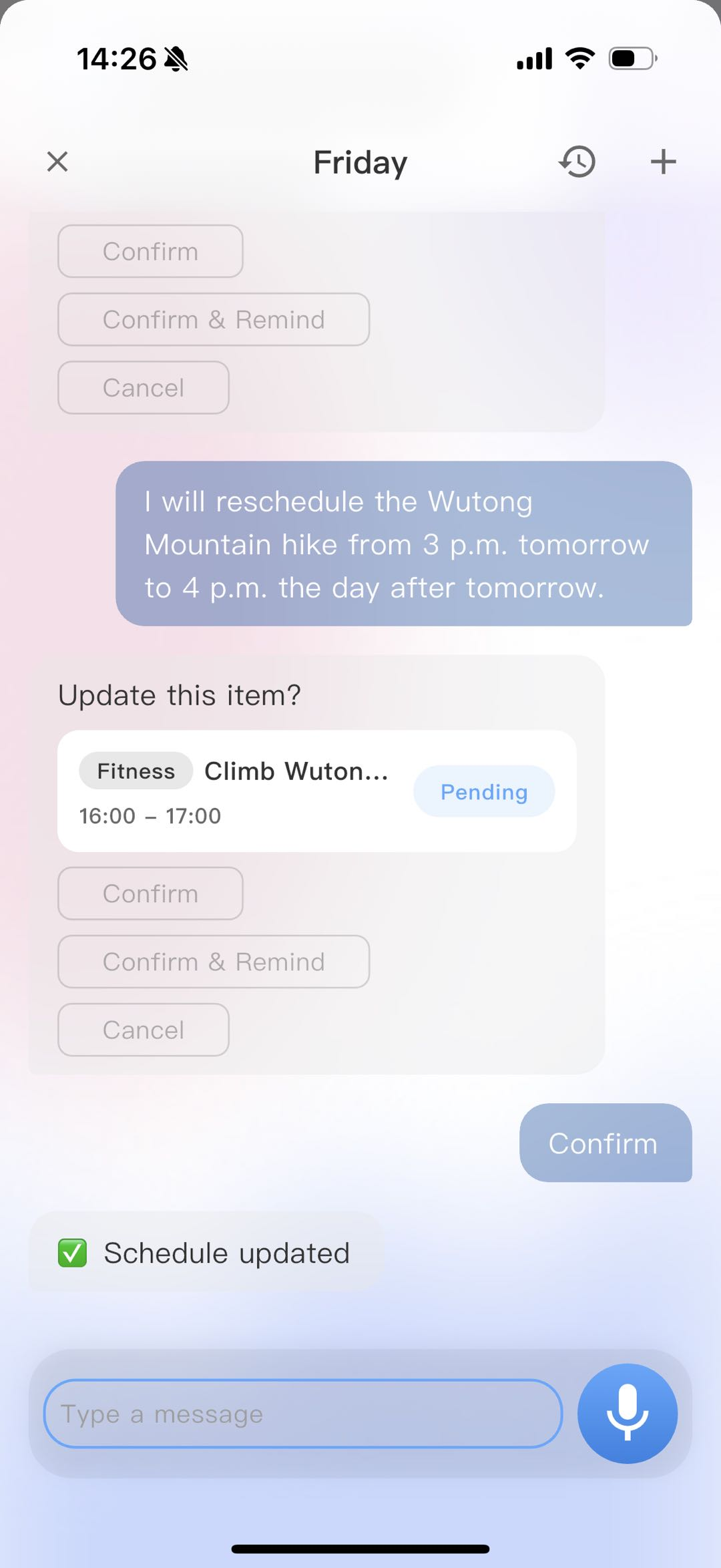
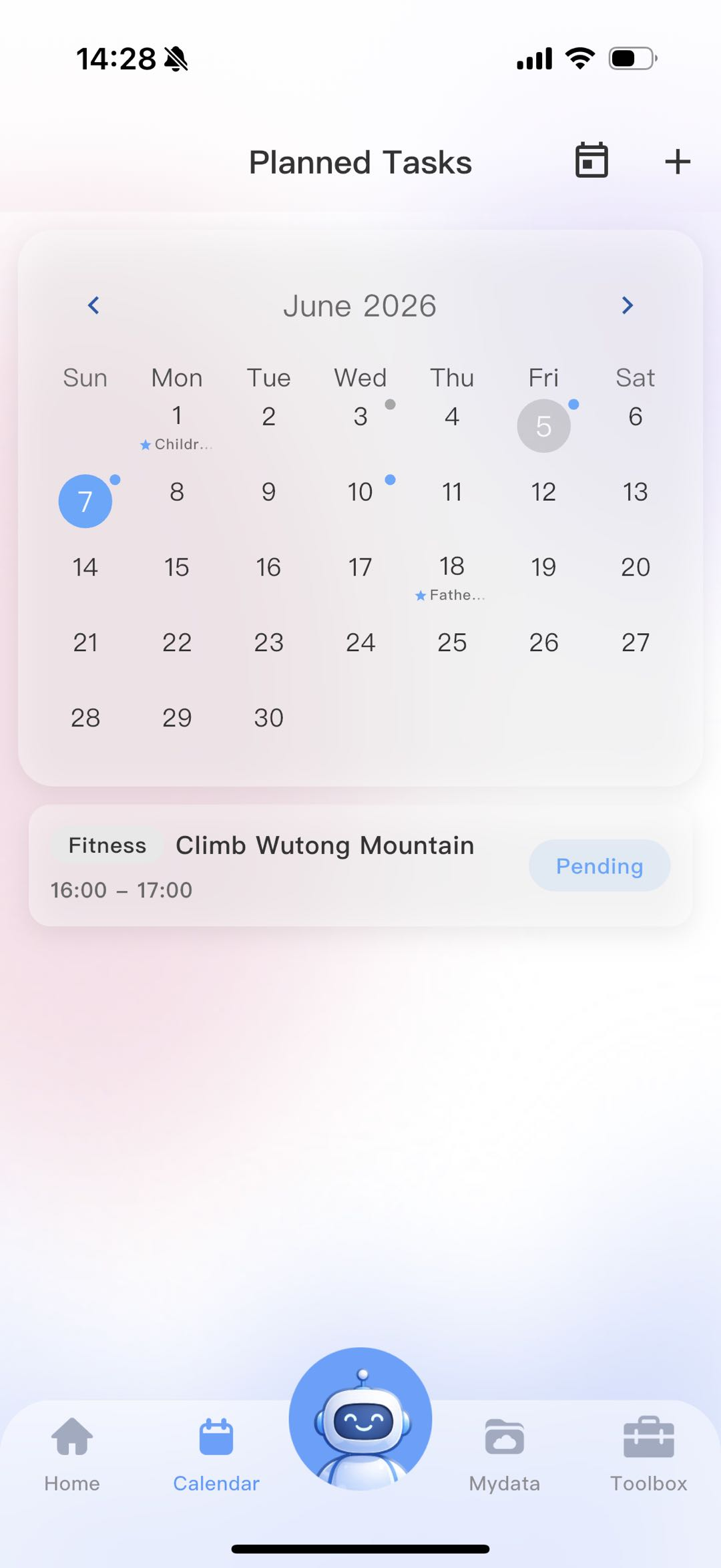
Click the Friday dialog box and enter a natural language modification command (e.g., “Change tomorrow’s 3 PM Wutong Mountain climb to the day after tomorrow at 4 PM”). Friday will search for the matching schedule and ask <Confirm modification?>. After confirmation, the to-do item will be automatically updated and synced to the calendar.
4. Query Schedule
Click the Friday dialog box and enter a natural language query (e.g., “What to-do items do I have tomorrow?”). Wait 5–10 seconds; Friday will compile and display all scheduled items for the specified date, supporting custom queries for any date.


Note: The above are demonstration examples only. Friday supports diverse everyday natural language expressions. No fixed wording is required for adding, deleting, modifying, or querying—feel free to use your own phrasing.