How to Bind an Email Account?
How to Bind an Email Account?
EmailFunctionThis is a built-in multi-account aggregated email management tool. There is no need to install multiple email clients; you can centrally bind and manage multiple email accounts within this app. It currently supports three major email providers: QQ Mail, NetEase Mail (163/126), and Gmail. Complete email receiving, online viewing, attachment preview, and storage all in one place. After binding, inbox content is automatically synced, and email attachments can be saved to cloud storage with one click, enabling full feature interoperability.
Accessing the Entry Point
On the [My Data] page, locate the “Online Services” category and tap the email icon (the first option) to enter the email binding main page.
Select Email Type
The page displays three optional email types: QQ Mail, NetEase Mail, and Gmail. Tap the corresponding type based on the email account you wish to bind.
(1)Bind QQ Mail
1. Enter the QQ Mail section and tap the blue “+” in the upper-right corner.
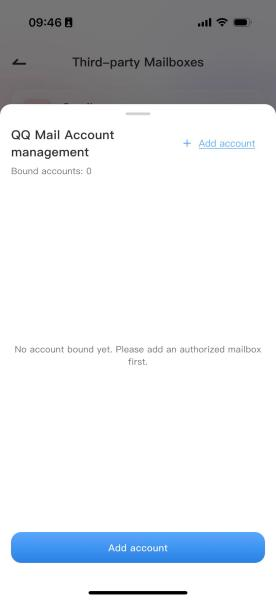
1. Enter the complete QQ Mail address (format: xxx@qq.com);
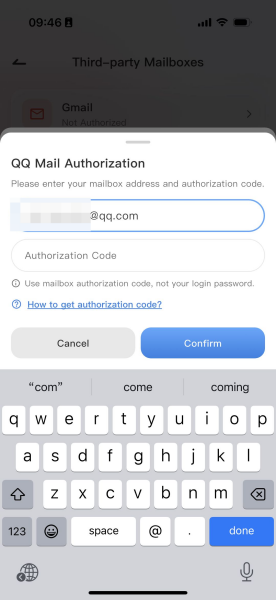
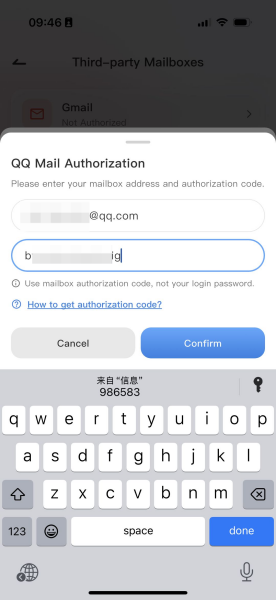
In the password field, enter the QQ Mail authorization code (not the QQ login passwordfollow the blue instructions to obtain the authorization code).);
After filling in all information, tap Confirm to bind. The system will automatically sync emails.
(2)Bind NetEase Mail (163/126.com)
1. Enter the NetEase Mail section and tap the blue “+” in the upper-right corner.
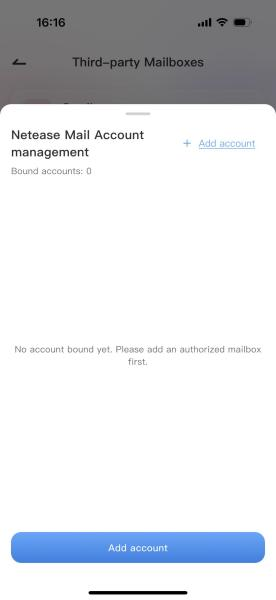
2.Enter the complete NetEase email account (xxx@163.com/xxx@126.com);
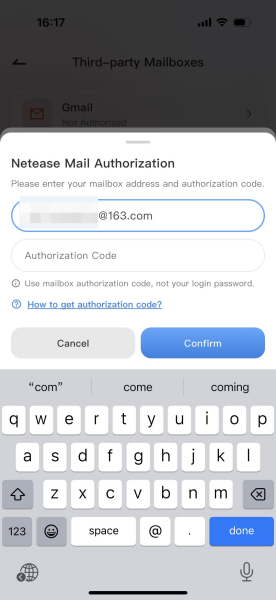
3.Enter email loginAuthorization Code, (Obtain the authorization code by following the blue instructions);
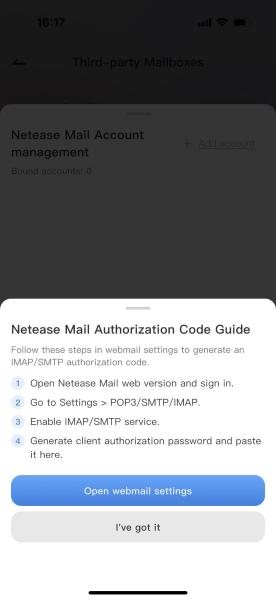
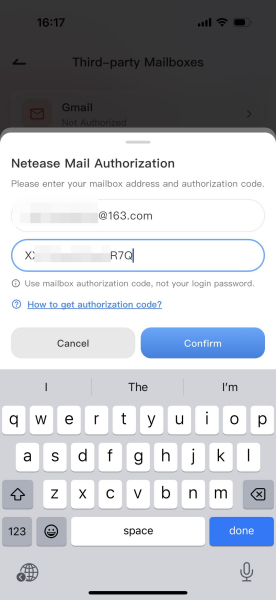
4.Submit the information to complete binding; historical emails will be automatically fetched.
(3) Bind Gmail Account
① Enter the complete Gmail account address;
② Follow the page redirect instructions to jump to the official Google authorization page and complete account authorization;
③ Upon successful authorization, you will be automatically returned to the app, completing account binding and email syncing.
3. Binding Complete
After successful binding, you will be automatically redirected to the email inbox. The system syncs recent email content. Multiple different email types can be bound simultaneously; tap the email avatar to switch between accounts.
IV. Frequently Asked Questions:
Binding Failed: The most common cause is that the email account has not enabled the IMAP/POP3 protocol. Go to the web version settings page of the corresponding email service, enable the protocol, and retry;
Account Security: The app only syncs emails through official protocols and does not store your original email login password or authorization code;
Unbinding Method: Go to the email settings page, select the bound email account, and tap Unbind to stop syncing that account’s emails.
After binding, you can manage all emails in one place within the mail section.