How to Download the Mobile App (iOS/Android)
iOS Device
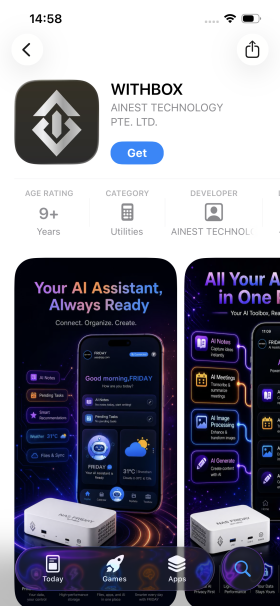
Step 1: Open the Apple "App Store"
Step 2: Go to the Apple App Store, search for the "WITHBOX" app, tap "Get" to download and install, then you can start using it.
Android
Download via Link
Step 1: Open any browser on your phone (Chrome is used as an example)

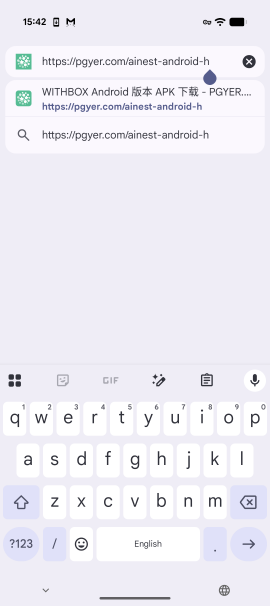
Step 2: Visit the following URL:https://pgyer.com/ainest-android-h
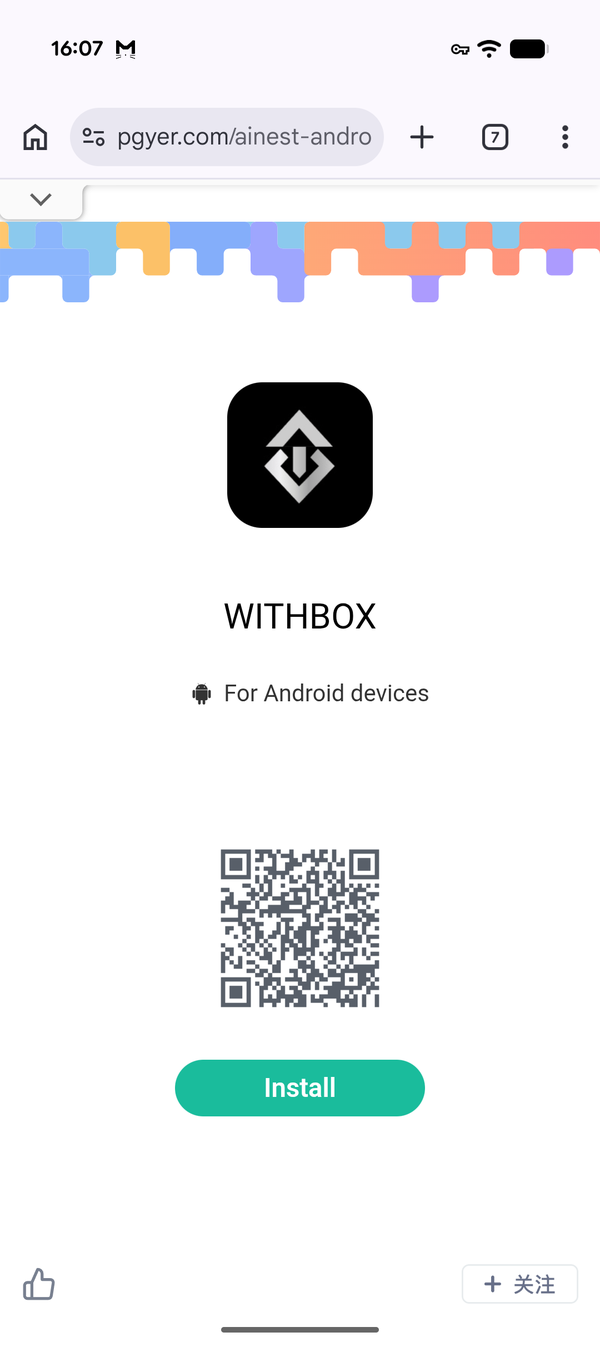
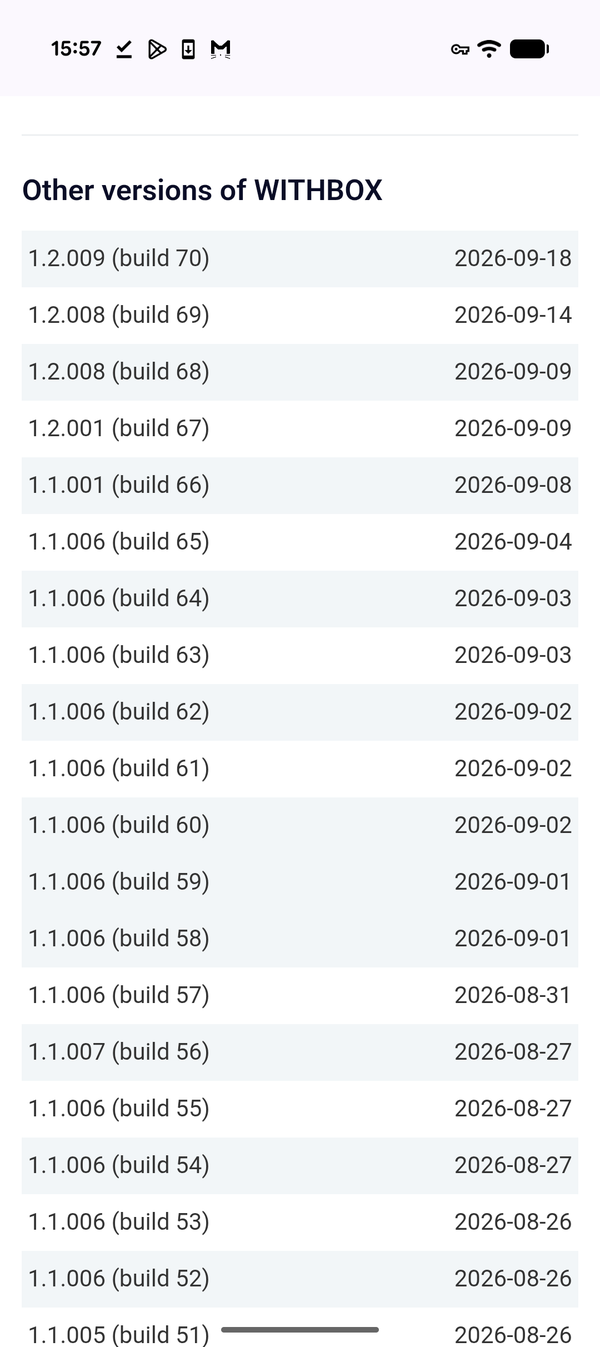
Step 3: After the page loads, tap the "Install" button (Notescroll down and select the latest version, then tap Install);
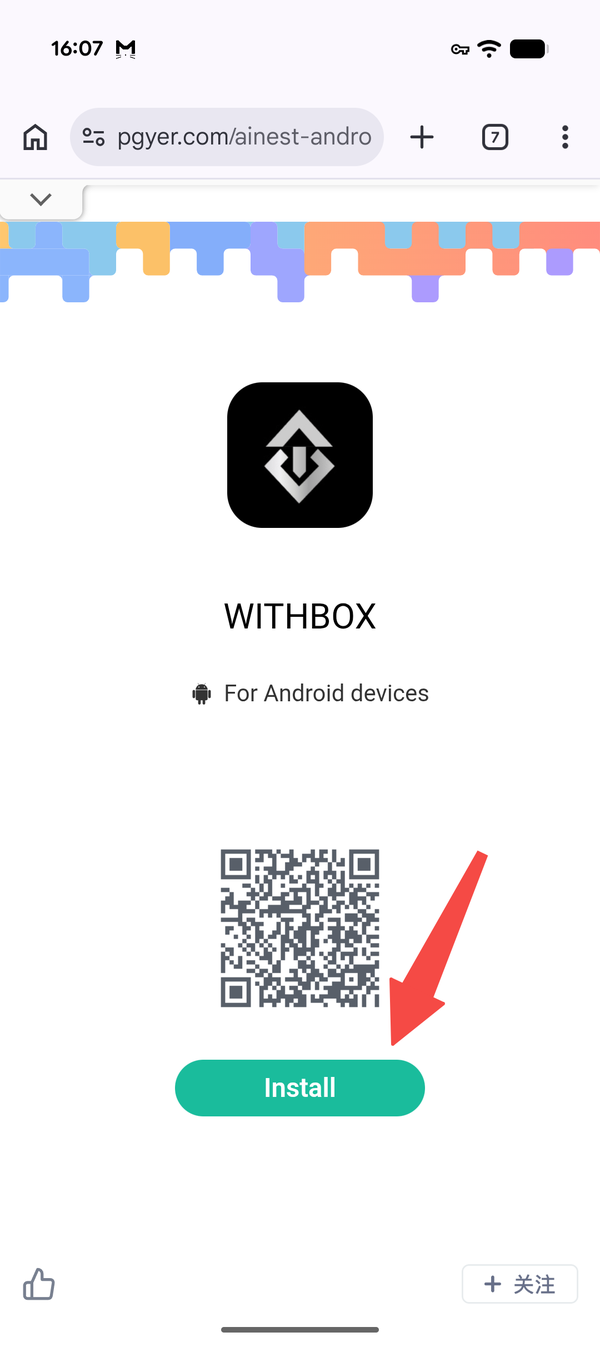
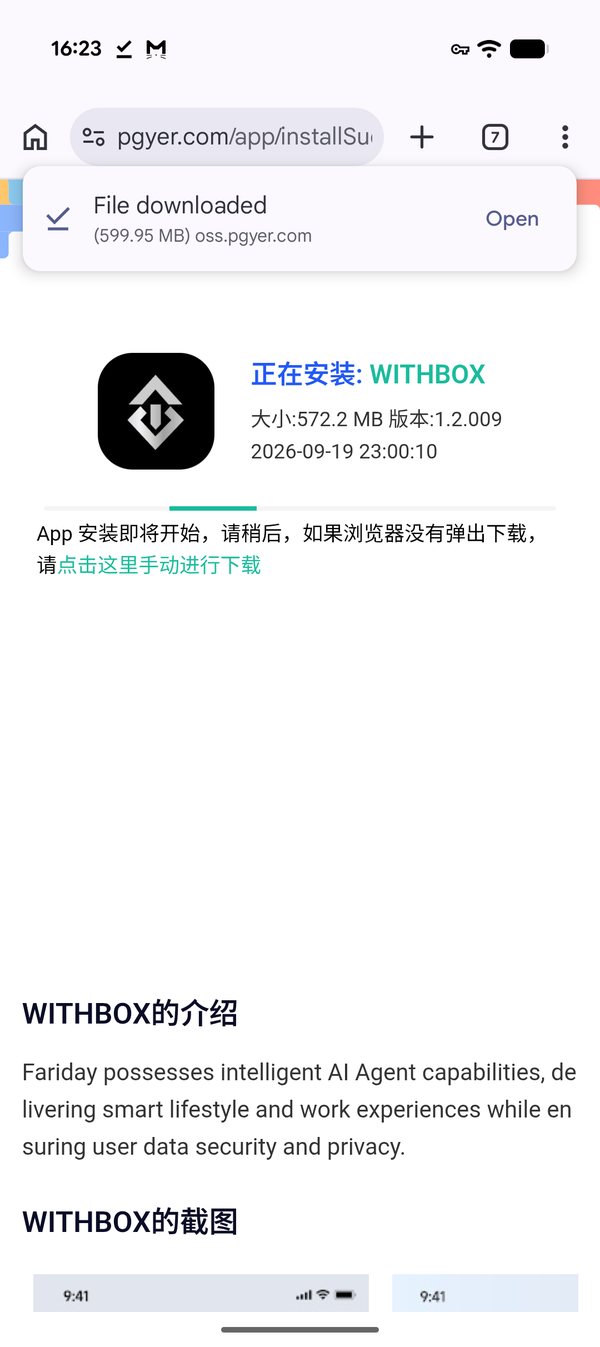
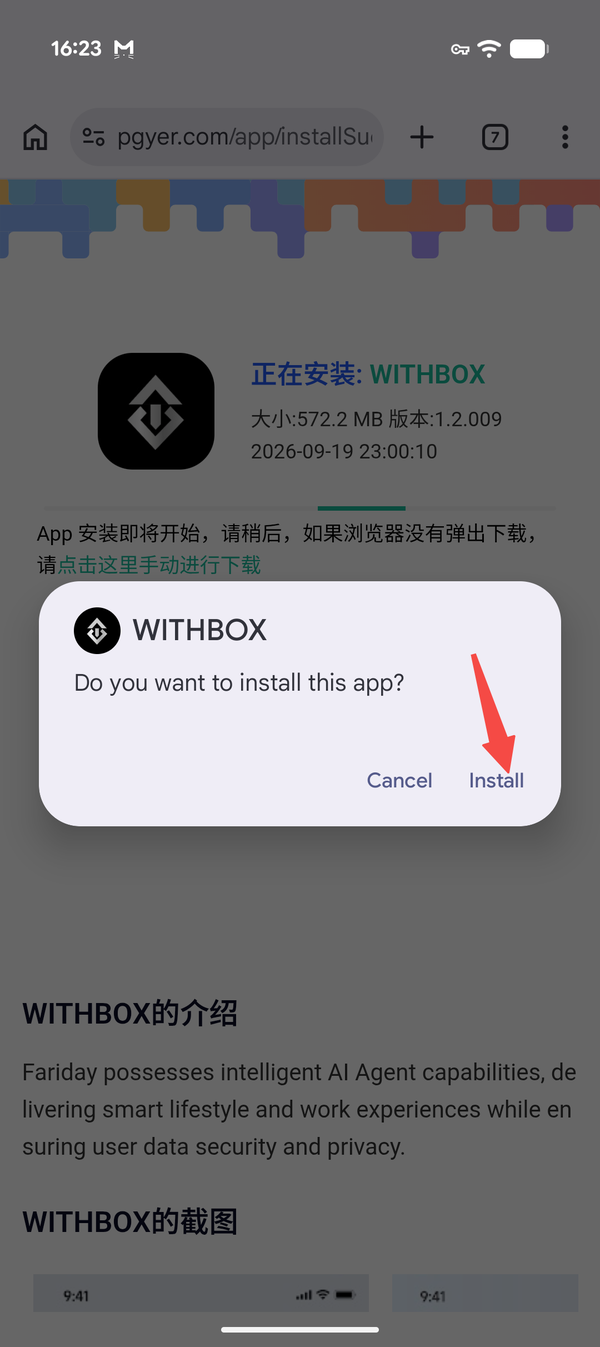
Step 4: Open the file to start the installation.
Note:When downloading and installing via a link in Chrome, you may see a warning that says "This file may be unsafe". In this case, please select [Download anyway].
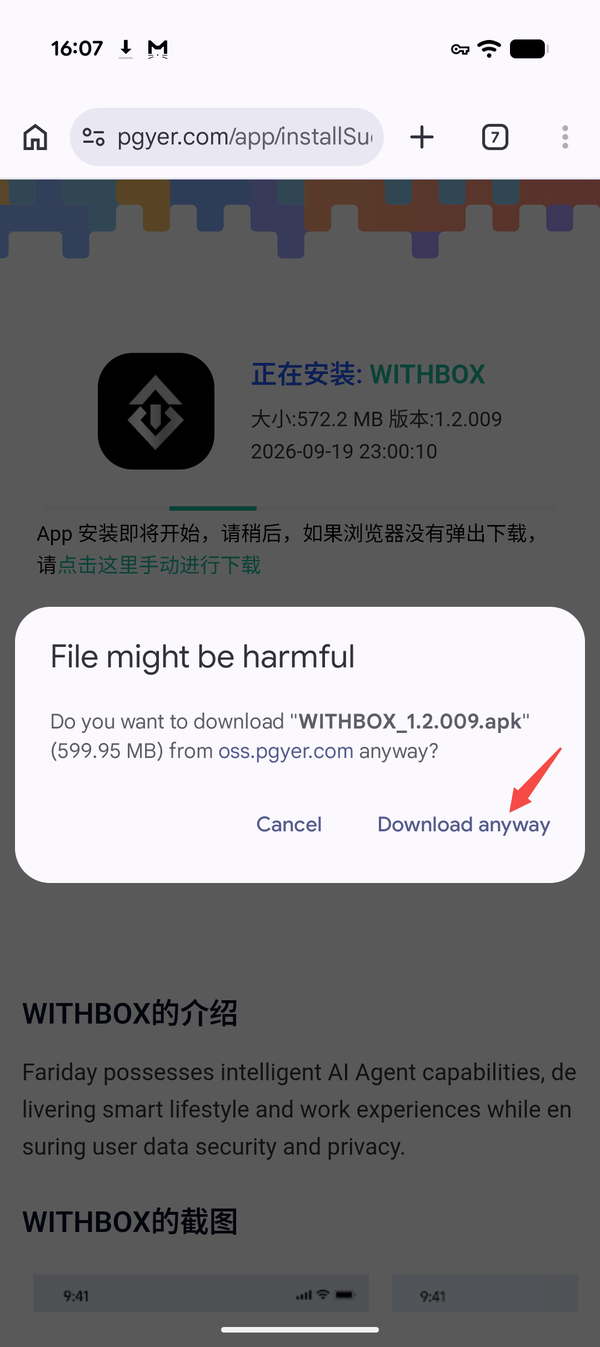
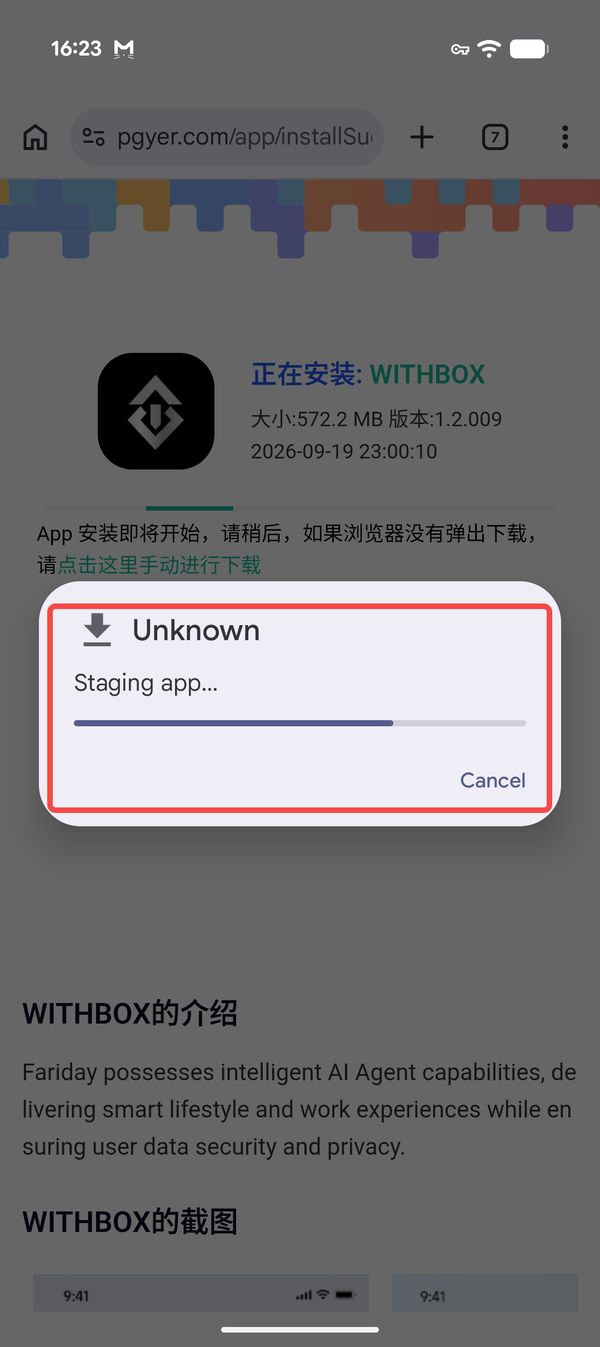
Step 5: Wait for the progress bar to complete. Once the installation is finished, tap [Open] to launch the WITHBOX app.
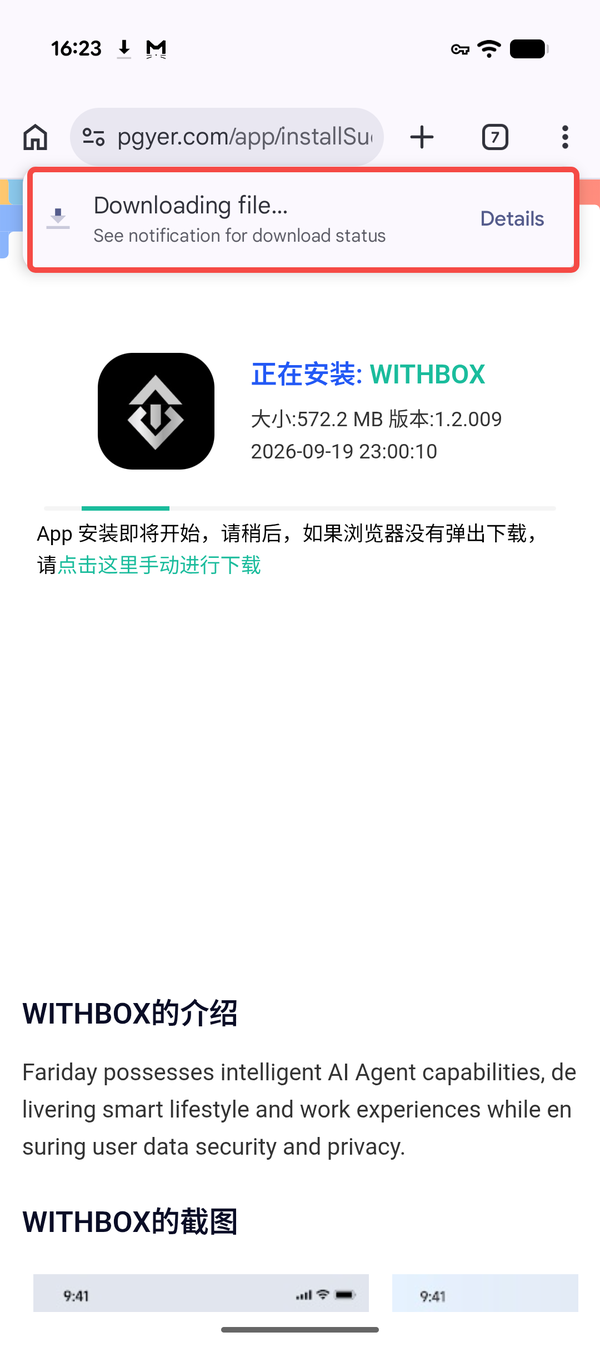
Download from Google Play
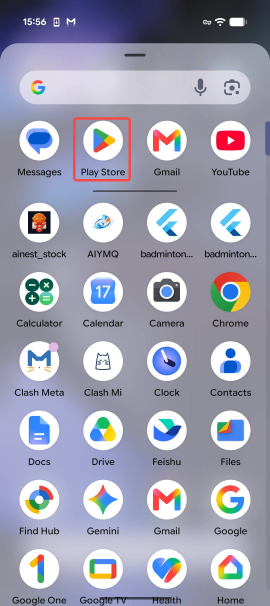
Step 1: Open the Play Store: find and tap the "Play Store" icon on your phone’s home screen;
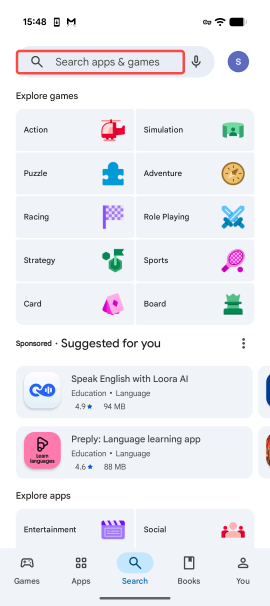
Step 2: Tap the search bar at the top and type "WITHBOX";
Step 3: Find the correct app in the search results and tap the "Install" button;
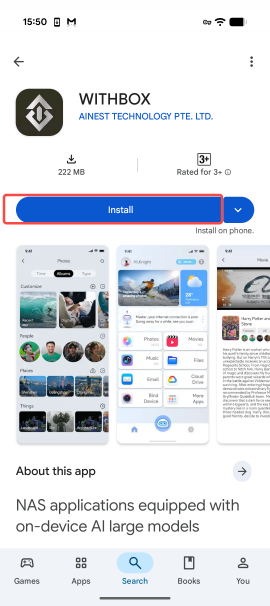
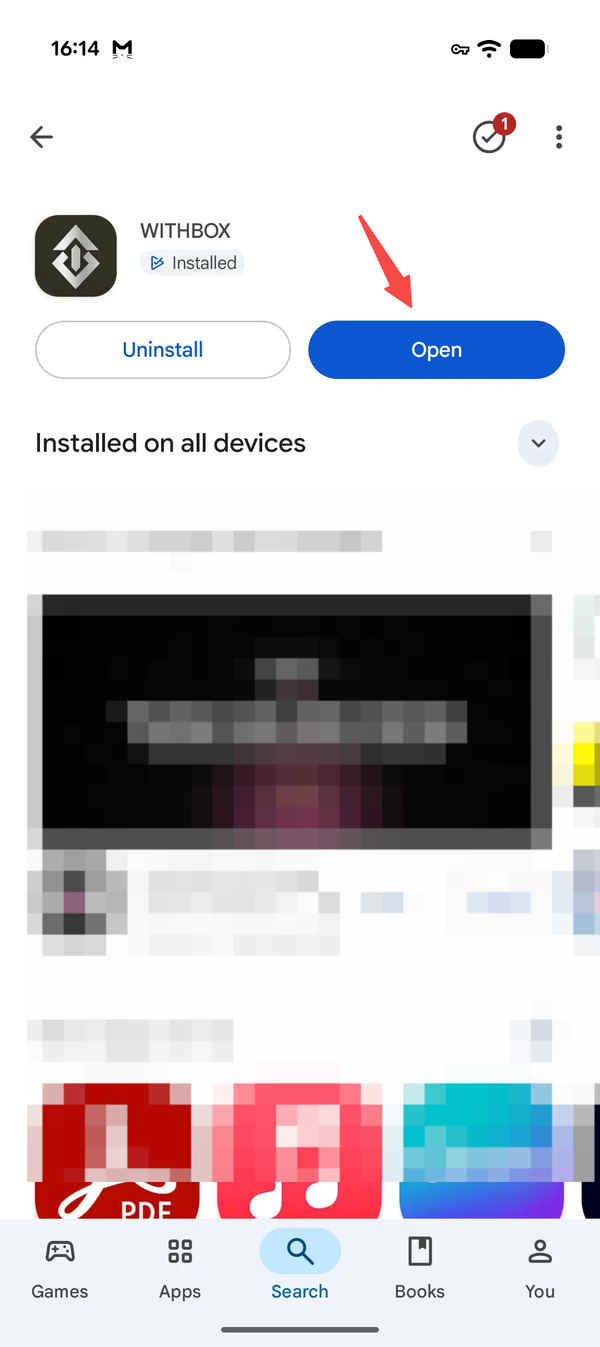
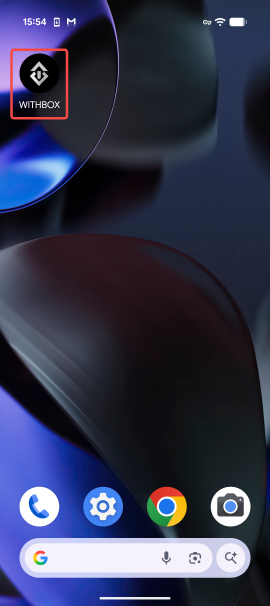
Step 4: The download and installation will run automatically. Once the progress bar completes, tap [Open] in the Play Store, or find the WITHBOX icon on your home screen to launch the app.
Download via QR Code
Step 1: Open your phone’s built-in camera or a scanning tool (such as WeChat, QQ, or a browser’s QR scanner) and point it at the QR code

Step 2: After the QR code is recognized, tap the "Install" button (Notescroll down and select the latest version, then tap Install).
Step 4: Open the file to start the installation.
Note:When downloading and installing via a link in Chrome, you may see a warning that says "This file may be unsafe". In this case, please select [Download anyway].
Step 5: Wait for the progress bar to complete. Once the installation is finished, tap [Open] to launch the WITHBOX app.