How to Search for Images in Friday?
How to Search for Images in Friday? (Pending Screenshots — temporarily unable to complete all)
l Search by Specified Date
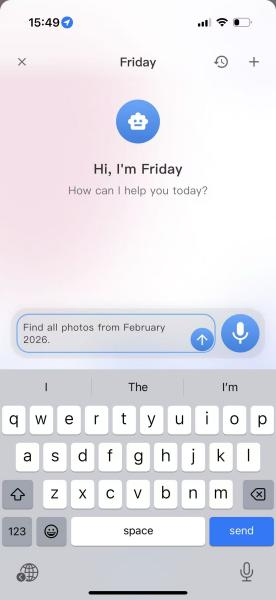
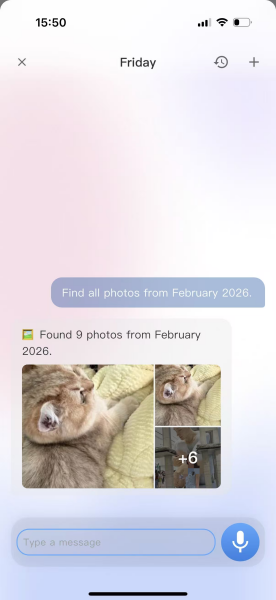
Operation: Open the Friday dialog box and enter a natural language query supporting single days, months, and time ranges.
Examples: 1. Find all photos from June 2026; 2. Find all photos from February 2026.
After sending the command, Friday automatically filters all image files with the corresponding capture time.
l Search by Specified Person (Portrait Name)
Operation: Open the Friday dialog box and enter a person’s name. You can search by name alone or narrow results by adding time/location.
Examples: 1. Find all photos of XX; 2. Find photos of XX at the beach; 3. Candid photos of XX from August 2025.

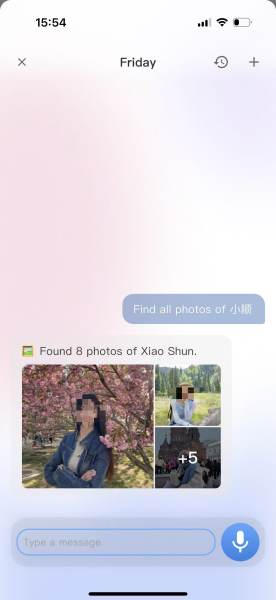
Leveraging facial recognition, one-click aggregation of all media featuring that person in the album.
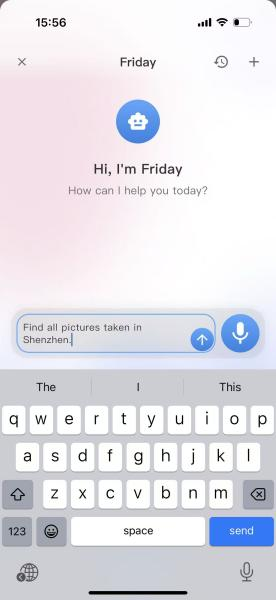
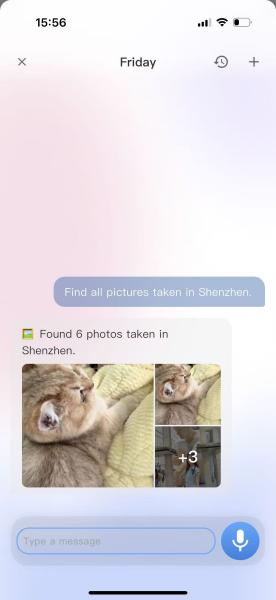
l Search by Shooting Location: Supports cities, scenic areas, and specific venues. Search by location alone or combine with other criteria.
Examples: 1. Find all photos taken under a tree; 2. Find images shot in Shenzhen; 3. Photos from winter 2025 in Shenzhen.
1. Search by Image Content (Visual Features) (Action / Outfit / Objects / Scene)
Based on text descriptions, Friday calls a model to retrieve character actions, clothing, animals/plants, food, and objects in the frame:
① Facial Expression & Action
Examples: 1. Find photos of people making a V sign; 2. Search for photos of someone resting their chin on their hand
② Outfit Style
Example: Search for photos of people wearing hats
③ Animals & Plants
Example: Find photos of cats
④ Food & Fruit
Examples: Search for kiwi images, images of all gourmet food
⑤ Scene & Environment
Example: All images taken at the beach
Multi-Condition Combined Search (Precise Retrieval): Time + Location + Person + Content can be stacked simultaneously
Examples: 1. Find photos of Xiaoshun wearing a blue denim jacket from June 2025; 2. Food images shot outdoors last month.