How to Use AI Meeting? (Known bug: meeting minutes disappear after editing and saving
How to Use AI Meeting? (Known bug: meeting minutes disappear after editing and saving
I. Overview
AI 会议是智能录音转纪要工具,支持现场会议实时录音、语音自动转文字,依托 AI 算法一键提炼会议纪要、要点摘要;可自定义会议名称、补充提示词、添加配套附件,还能后期追加录音,历史会议统一归档管理,适配多种会议场景。页面分类标签:全部、已完成、处理中,自动区分会议生成状态。
II. Steps to Create a New Meeting
Step 1: Start New Recording
On the AI Meeting homepage, tap the blue + plus button in the lower-right corner of the page to open the recording pop-up.
Maximum single recording duration: 60 minutes. The on-page timer displays 00:00/60:00;
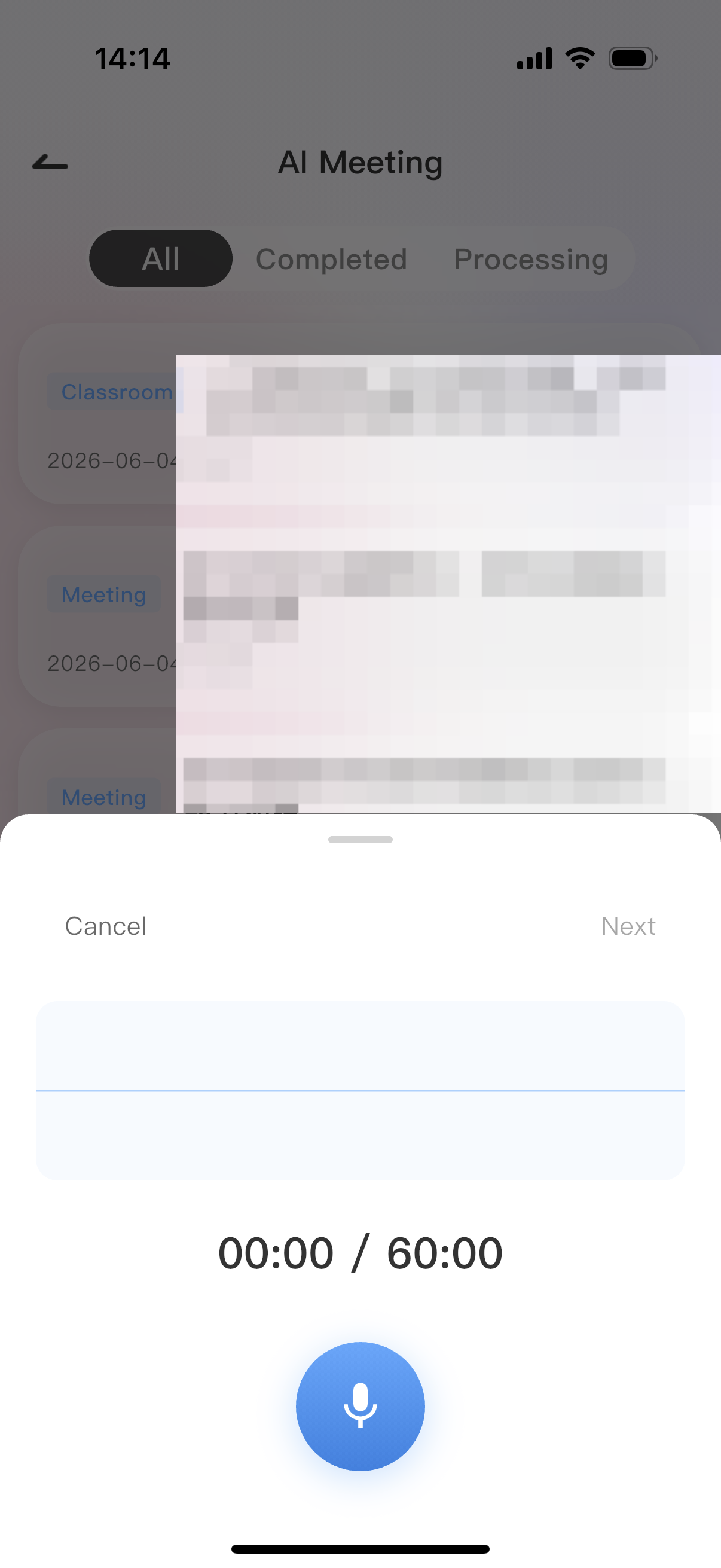
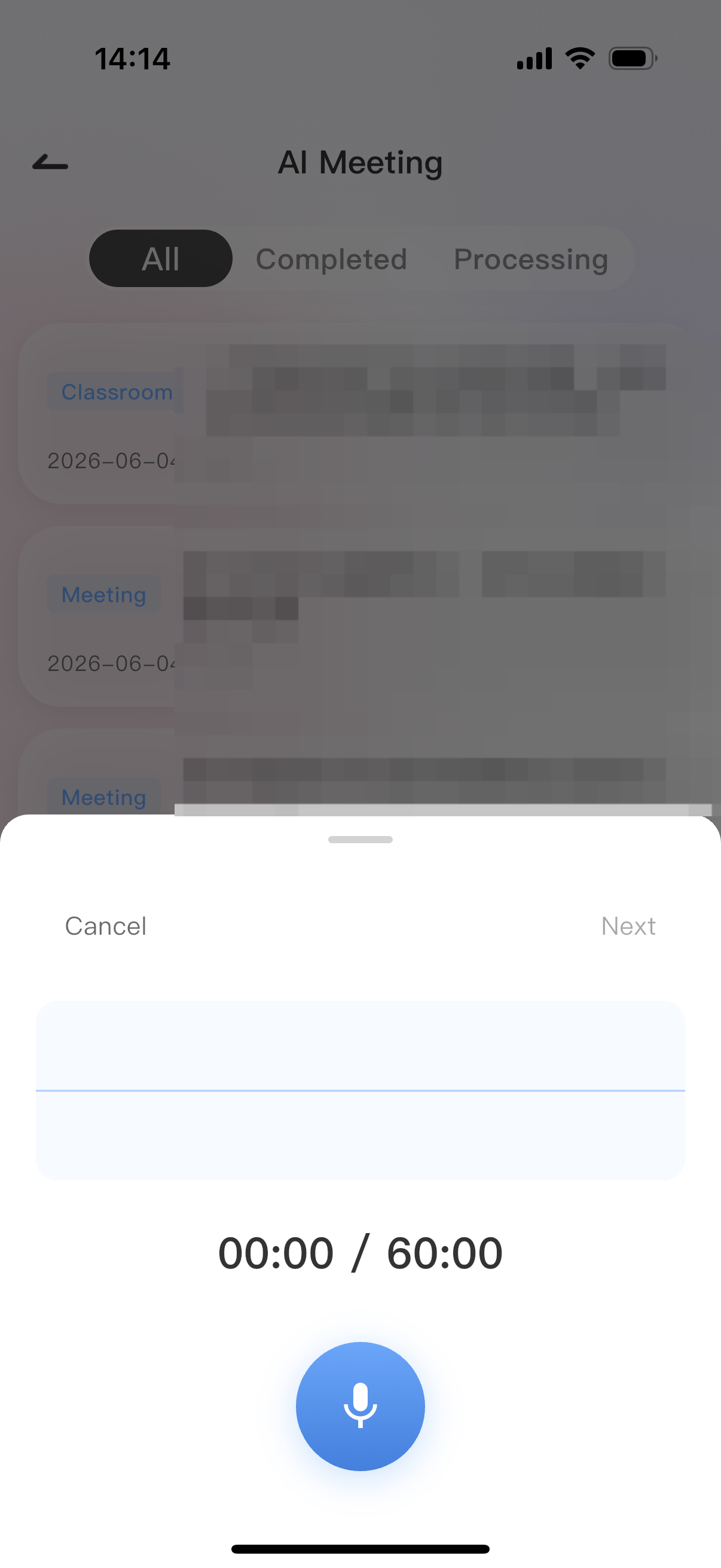
Tap the blue microphone icon in the center to start/pause recording; tap [Cancel] in the upper-left corner to discard this recording. After recording ends, tap [Next] in the upper-right corner.
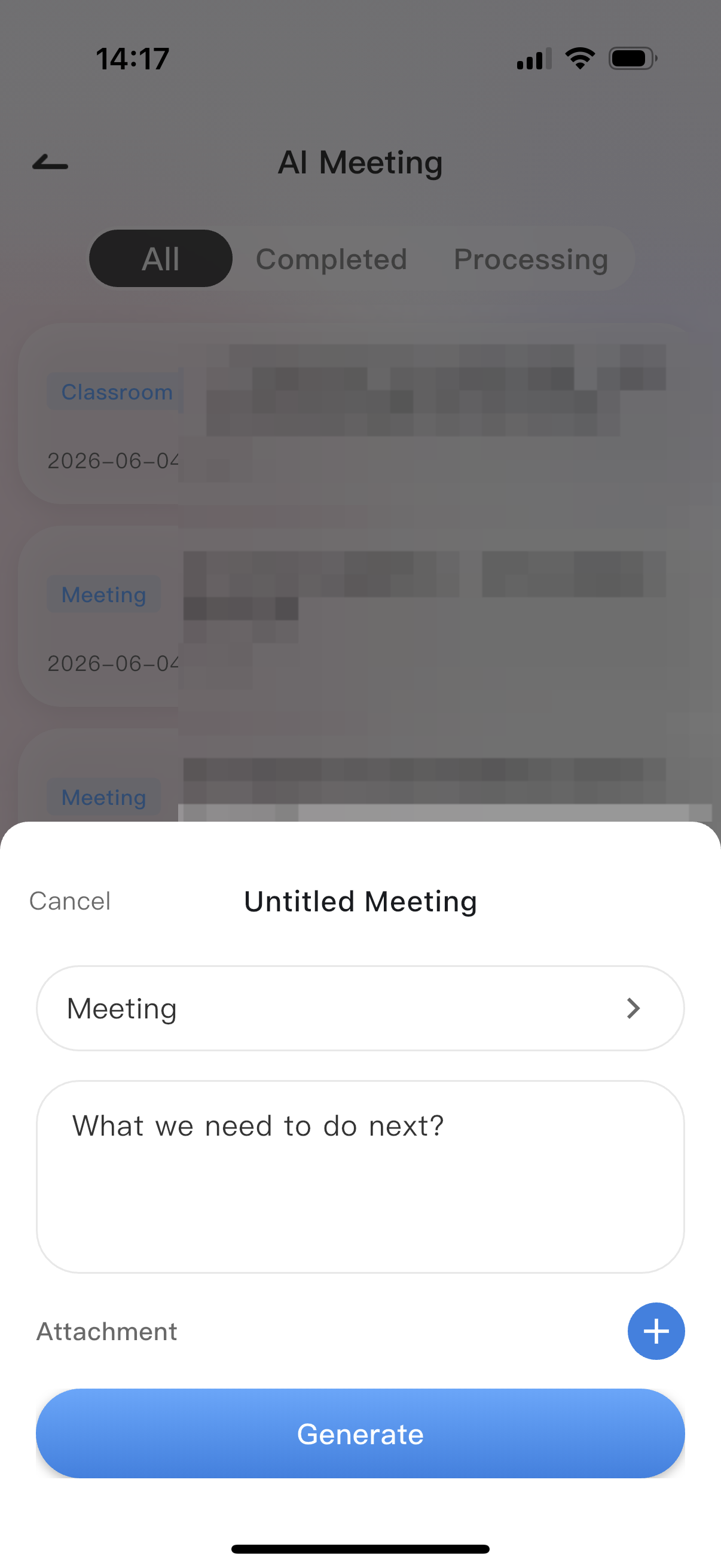
Step 2: Meeting Information Configuration (Naming + Prompts + Attachments)
Modify meeting type>Enter keywords>Add meeting attachments. After all settings are complete, click the blue [Generate] at the bottom; the system automatically parses the recording text, prompts, etc., and AI summarizes the meeting minutes.
Step 3: View Meeting Details
Upon completion, automatically jump to the meeting detail page, which is divided into 4 tabs: Recording Transcript, Meeting Minutes, Append Recording, and Attachments.
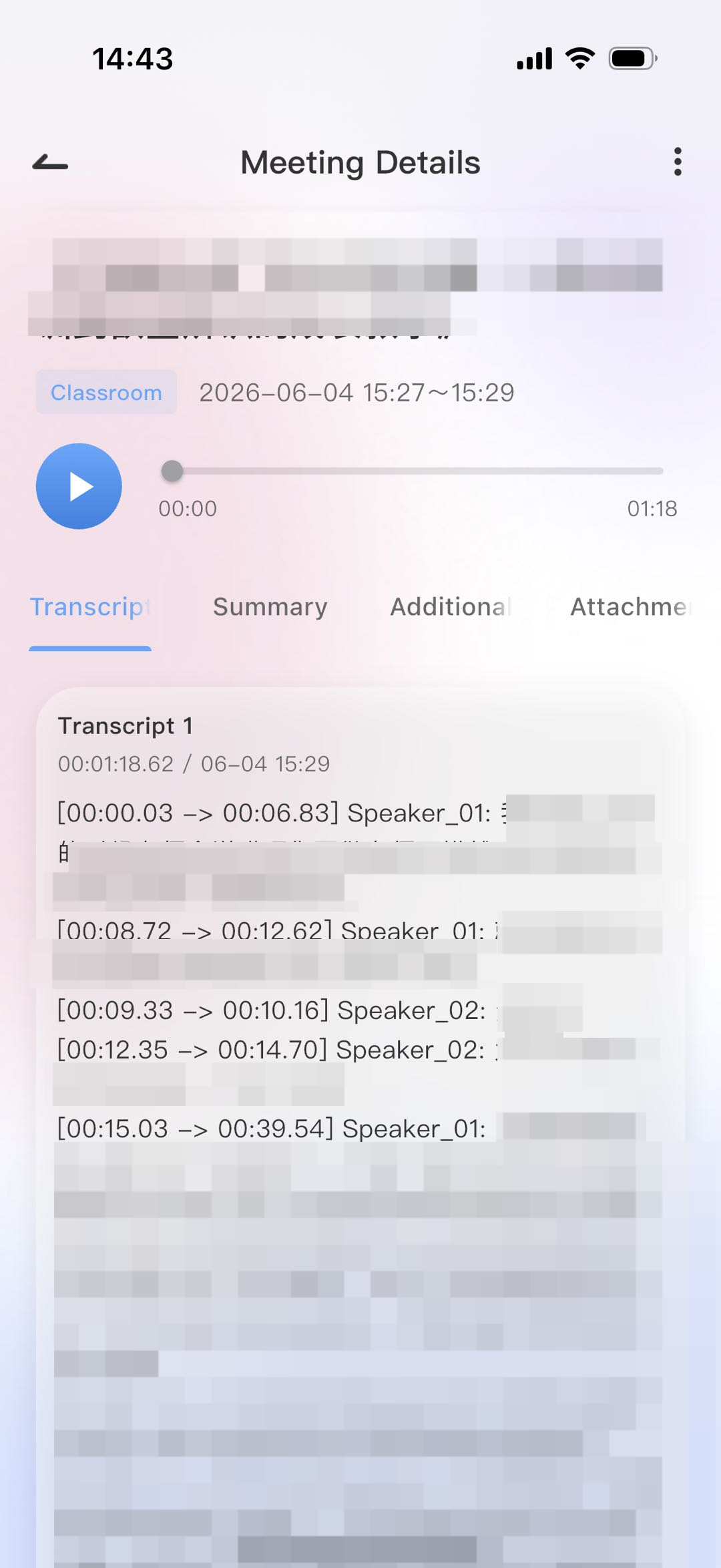
Recording Transcript:Automatically splits speakers (Speaker_01), timestamps the audio, and displays the full speech-to-text content. The play button in the upper-left corner allows replay of the original recording;
Meeting Minutes:AI-generated condensed meeting summary.
Append Recording:Add omitted discussions after the meeting; new recordings are automatically merged into the same meeting document;
Historical recordings can be viewed in the list:
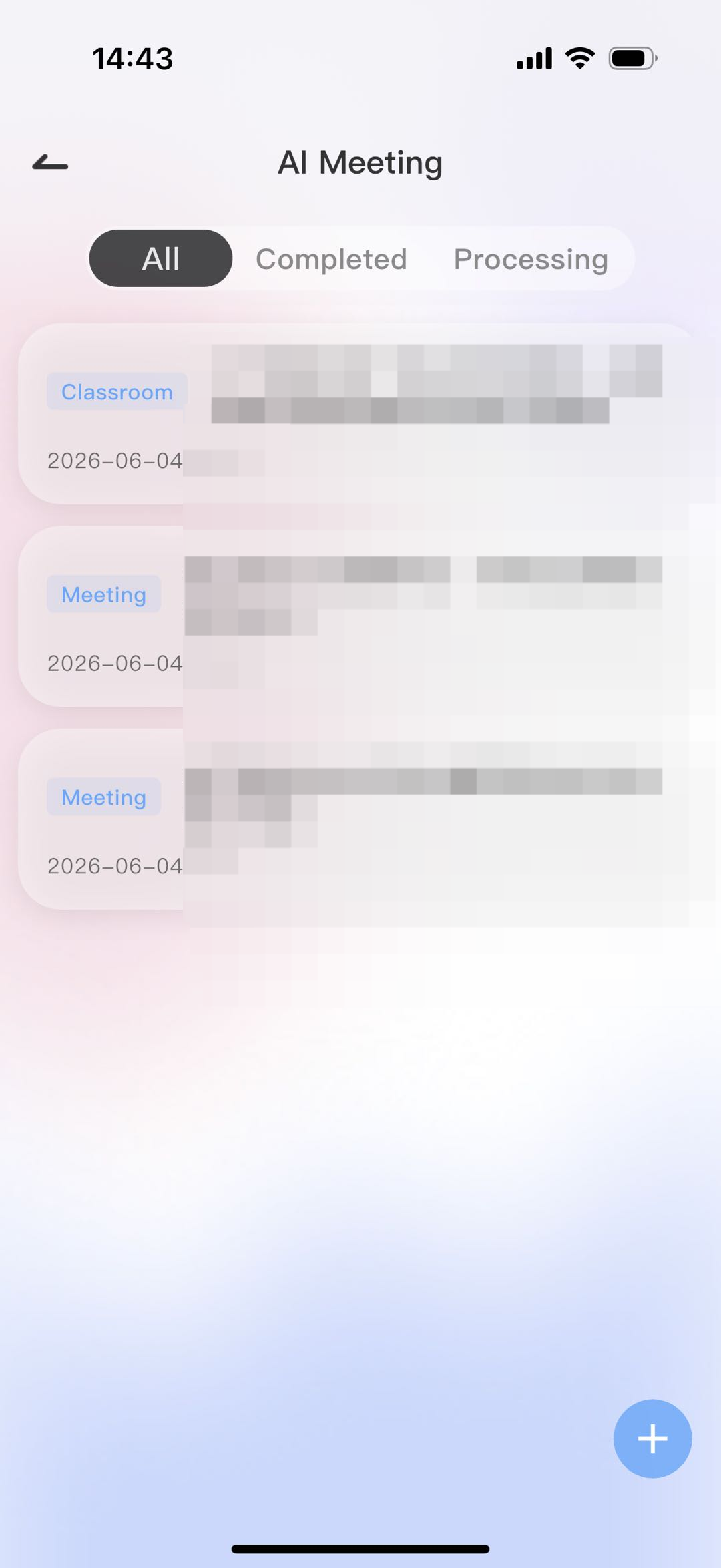
All:Display all created meeting records;
In Progress:Tasks currently being parsed by AI, with minutes not yet generated;
Completed:Archived meetings with minutes already generated;
Tips:
1. Summary generation failed: This is usually due to insufficient valid content in the recording. Re-enter “Append Recording” to add more speech content, then regenerate;
2. Long meetings: For recordings exceeding 60 minutes, record in multiple sessions and use “Append Recording” to merge them into the same meeting.